

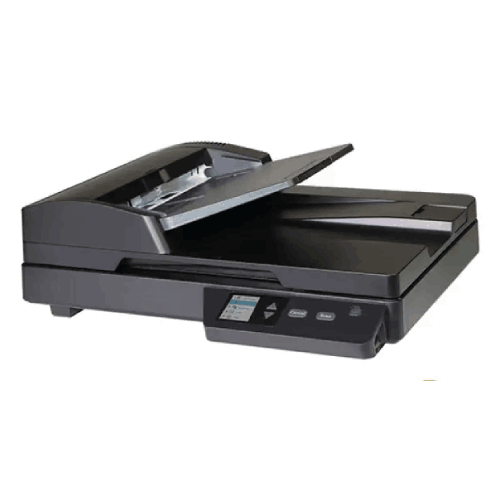
Avision AD136WN Document Scanner
Regular Price:৳42,500.00Availability: SKU: 7.29.199.9673
Quick Overview
-
Support
Saturday – Thursday: 09 AM - 06 PM. -
Payment
Cash on Delivery | Card | Online Payment -
Shipping Cost
Inside Dhaka 100tk | Outside Dhaka 150tk -
Warranty Policy
Read More
Description
Avision AD136WN Document Scanner Price in Bangladesh
The Avision AD136WN Document Scanner combines a flatbed scanning surface with a 75-sheet automatic document feeder (ADF), according to the supplied specifications. This combination gives buyers two different ways to present documents for scanning: place an individual original on the flatbed, or load a batch of suitable sheets into the feeder. The best method depends on the material and the scanner’s documented paper-handling limits.
The supplied feature list also gives scanning speeds of 36 pages per minute (ppm) and 72 images per minute (ipm), resolution up to 1200 × 1200 dpi, and a daily volume of up to 3,000 sheets. Connectivity is listed as USB 3.2, Ethernet and Wi-Fi. These are useful comparison points for an office or business workflow, but the details provided do not specify the settings used for speed, the type of resolution measurement, or the precise network features. Confirm those points if they matter to your purchase.
Flatbed and ADF flexibility
A flatbed gives the user a surface on which to position an individual original. That can be useful when a document is best handled separately rather than placed in a batch feeder. An ADF, by contrast, is designed to accept a stack of separate sheets, subject to the scanner’s instructions and supported media. The AD136WN is listed with both, offering a choice of scanning approach within one device.
The supplied information does not state the flatbed’s maximum scan area, the ADF’s supported paper sizes or the materials that can safely pass through it. Before buying, check whether the documents you handle fit the supported dimensions and paper specifications. If you work with varied originals, ask which should go through the ADF and which should be placed individually on the flatbed. Do not assume that every material or size is supported by both scanning methods.
75-sheet automatic document feeder
The ADF is specified with a capacity of 75 sheets. This provides a useful reference when considering how many pages may be loaded for a batch, but the actual loading procedure and eligible paper types should be checked in the product documentation. Feeder capacity can depend on paper size, thickness, condition and how the stack is prepared.
A feeder can help organise routine scanning of separate pages, while the flatbed remains available for originals better handled one at a time. The ADF does not, by itself, establish supported paper sizes, document thickness, daily workload or automatic two-sided scanning. Confirm those capabilities if your workflow depends on them.
When planning a busy office process, consider not only how many pages fit in the feeder but also how pages are prepared, checked and saved. Removing clips, arranging sheets as directed and keeping the paper stack within the supported limits can help ensure the workflow follows the manufacturer’s instructions.
Scanning speed: 36 ppm and 72 ipm
The supplied specifications list a speed of 36 ppm and 72 ipm. PPM refers to pages per minute, while IPM refers to images per minute; however, the provided information does not state the test conditions or scanning modes behind these figures. Actual throughput can depend on settings, document type, connection, software and the time needed to prepare and save files.
Ask what page size, resolution, colour mode and feed conditions apply to the speed figures. If your work includes two-sided originals, confirm duplex capability directly: the supplied details list 72 ipm but do not explicitly state that the scanner supports automatic duplex scanning. Do not rely on the speed figures alone to establish that function.
For planning, estimate the number of documents you need to process and consider the whole task, not only the scanner’s rated speed. Loading pages, checking results, naming files and placing them in the right destination can all form part of everyday processing time. Compare the stated rates with your actual workload and the conditions in which you expect to use the scanner.
Resolution up to 1200 × 1200 dpi
The Avision AD136WN is listed with resolution up to 1200 × 1200 dpi. The supplied information does not identify whether this refers to optical resolution, an available scan setting or another resolution specification. Confirm the exact resolution type and modes before relying on the figure for detailed image work.
The resolution you need depends on the purpose of the scan. Routine readable records may have different requirements from documents where small text, fine lines or image detail must be preserved. File size, colour settings and software can also affect the finished file. Ask which scan modes and output settings the scanner supports, and check how they fit the applications or storage process you plan to use.
If you have a particular use case, such as archiving detailed documents or processing forms, test representative originals if possible. This can help you judge whether the available settings produce the level of detail you need, without assuming that the headline resolution alone guarantees a particular result.
Daily volume of up to 3,000 sheets
The supplied daily-volume specification is up to 3,000 sheets. This figure can help buyers assess the scanner for routine workplace use, but the information does not clarify whether it is a maximum recommended daily duty cycle or provide the conditions behind it. Treat it as a stated daily-volume figure and confirm its meaning with product documentation.
Estimate your normal workload and your busiest days before choosing a scanner. If the number of pages varies, consider the peak periods as well as the average. Ask whether a specific maintenance schedule or duty-cycle recommendation applies when the scanner is used regularly. The stated volume does not mean every document type can be processed at the same speed or under the same conditions.
It can also help to plan how scanned files will be checked and stored. The scanner’s physical capacity is only one part of a document workflow; computer resources, software, naming rules and storage access may also affect how efficiently staff work.
USB, Ethernet and Wi-Fi connections
The supplied connectivity options are USB 3.2, Ethernet and Wi-Fi. These give buyers connection types to compare with the computers and network arrangements they intend to use. The specification does not state the USB generation, Ethernet speed, Wi-Fi bands, wireless standards beyond the Wi-Fi label, supported network protocols or included cables.
Before purchase, check the exact connection requirements for each intended workstation. If you plan to connect the scanner by USB, confirm the port details and computer compatibility. If you plan to use Ethernet or Wi-Fi, ask how network scanning is configured and which computers, users or applications can access it. The presence of a network connection does not, by itself, confirm a particular scanning-to-folder, email, cloud or mobile workflow.
For an office with more than one user, establish how the scanner is expected to be shared. Confirm whether the intended connection method supports the way your organisation manages devices and permissions. For wireless use, check network requirements and setup instructions before placing the scanner in a location where a wired connection may not be practical.
Planning an office scanning workflow
The Avision AD136WN may be evaluated for offices that handle recurring paperwork, where the combination of a flatbed and a 75-sheet ADF could provide more than one method for presenting originals. A suitable workflow starts by identifying the documents, selecting the correct scanning method and deciding where the resulting files should be stored.
Before adopting any scanner for routine work, decide how files will be named, who will review them and which staff members need access. These are general workflow decisions, not product features. The supplied information does not describe document-management software, OCR, destination options or user-management functions for the AD136WN. Confirm those capabilities separately if your process depends on them.
A clear process can make scans easier to locate later. For example, an organisation might define a consistent naming format and a destination folder for each category of record. Check that any such workflow is supported by the software and connection method you choose, rather than assuming it is built into the scanner.
Software, operating systems and file formats
The supplied specifications do not list included software, supported operating systems, drivers, OCR functionality or file formats. If your work depends on searchable PDFs, text recognition, a document-management application or a particular operating system, confirm compatibility before ordering.
Check whether the scanner’s software is included, downloadable or supplied separately. Verify that the required driver is available for every computer that will use the device. If multiple people share the scanner through a network, ask whether the software and connection method support that setup. Do not assume an application or OCR feature is included just because the device is designed for document scanning.
It is also useful to consider how scanned files will be named, edited and archived. File formats and settings can affect readability, file size and compatibility with downstream systems. Confirm that the AD136WN and its supported software can produce files suitable for your intended records process.
Paper handling and document preparation
The ADF’s listed 75-sheet capacity does not specify which paper sizes, thicknesses or conditions it supports. Confirm the acceptable media range before scanning mixed documents. If your paperwork includes folded, damaged, unusually long or delicate originals, ask whether it is suitable for the ADF or should be handled another way.
The flatbed can provide a separate way to scan individual originals, but the supplied details do not state its scan area or any special handling guidance. Check the instructions for placing originals correctly and for keeping the scanning surface clean. Do not assume that the flatbed is suitable for a particular bound item, format or thickness without checking.
Good preparation helps maintain a consistent process. Arrange pages as directed, remove clips or fasteners when required and ensure the stack stays within the documented feeder limits. Follow Avision’s instructions for any paper-handling precautions rather than applying practices from a different scanner model.
Image quality and review
A scan may need to be checked before it becomes part of a business record. Review a sample of the output for legibility, alignment and completeness. Resolution, colour settings, paper condition and the original print can all affect the result, so check the settings against the document’s purpose.
The supplied information identifies a maximum resolution figure but does not specify colour modes, image correction, blank-page removal or other processing functions. If any of those capabilities are necessary for your workflow, confirm them before purchase. Avoid treating a general resolution figure as proof that a particular enhancement or image-processing feature is included.
Testing representative documents can help establish practical scan settings. Choose samples that reflect your normal paperwork, then check that the file is readable and can be saved where required. If the files will be used by other staff or departments, agree on a review and naming process before scanning larger batches.
Connectivity choices and shared use
USB, Ethernet and Wi-Fi are all listed, but the details supplied do not explain which functions are available through each connection. A direct computer connection and a network connection can involve different setup steps and software requirements. Confirm the intended method for the exact scanner and the computers that will use it.
For a shared office, check who can access the scanner and how users will send, retrieve or save scans. Do not assume that every network function is included simply because Ethernet and Wi-Fi are listed. The product details provided do not confirm scanning to a network folder, email, cloud service or mobile device.
If you plan to use Wi-Fi, check whether the scanner can connect to the network configuration in your workplace and whether any administrator setup is required. For USB or Ethernet, confirm the required cable types and whether they are supplied. These checks can help prevent delays when setting up the scanner at a desk or in a shared work area.
Potential uses in Bangladesh workplaces
The AD136WN may be considered for offices, businesses, administrative teams and educational organisations that need to digitise paper documents. The flatbed and 75-sheet ADF specifications give buyers two handling methods to investigate, while the listed speed, resolution and daily volume provide performance details to check against the workload.
Potential document workflows include processing business correspondence, forms and office records, subject to the scanner’s confirmed media limits and software support. An organisation may also consider network connectivity when planning where the scanner will sit and which computers need access. These are possible applications, not assurances that a specific network, document type or software system is supported.
For workplaces in Bangladesh, evaluate the scanner alongside your existing computers, network and recordkeeping process. Confirm the supported operating systems, available drivers and any necessary setup requirements. The product information supplied does not establish local installation, stock, delivery or warranty arrangements; check applicable purchase terms with BME.
Choosing between this scanner and another model
When comparing the Avision AD136WN with another scanner, use a checklist based on your actual documents and workflow. Compare the documented speed under matching conditions, the exact resolution type, the feeder capacity, the supported paper sizes, duplex operation and the daily-volume recommendation. If the products are described differently, request clarification rather than comparing figures that may be measured in different ways.
Also compare software, connections, operating-system compatibility and any required accessories. A model with a suitable feeder capacity may still not meet your needs if the software or connection method is incompatible with the workplace. The supplied details for the AD136WN do not answer every one of these questions, so ask for the complete specification sheet before making a final comparison.
This approach can be more useful than focusing on a single headline figure. A scanner is a component in a wider process that includes paper preparation, scanning, review, storage and retrieval.
Checks before putting the scanner into service
Before routine use, confirm the scanner’s installation instructions, required drivers and supported connection methods. Check whether it is appropriate to connect by USB, Ethernet or Wi-Fi in your setup, and install only the software recommended for the exact model. If several computers will use it, test the intended workflow with each one.
Run a small batch of representative pages before processing a large volume. Check that the originals feed as expected, the image settings produce readable files and the destination folders are correct. The supplied information does not list the scanner’s maintenance procedure, so follow Avision’s instructions for cleaning and ongoing care rather than applying advice for another model.
Finally, keep the model’s specifications and support documentation available to users. A simple set of instructions for loading pages, choosing scan settings and naming files can help maintain a consistent process. Confirm any service or warranty arrangements separately; they were not included in the supplied product details.
✅ Key Features
- Flatbed and ADF design: The listed combination gives users two methods for presenting suitable originals.
- 75-sheet feeder capacity: The stated ADF capacity can support batch preparation, subject to the scanner’s paper-handling instructions.
- 36 ppm / 72 ipm speed: The listed rates provide a performance reference; confirm their test settings before comparing.
- Up to 1200 × 1200 dpi: The resolution figure offers a basis for comparing scan specifications; confirm the exact resolution type.
- USB, Ethernet and Wi-Fi: Multiple listed connection options let buyers assess fit with their computers and network.
- Up to 3,000 sheets daily: The stated daily volume provides a workload reference, with its duty-cycle meaning to confirm.
- Two scanning surfaces or methods: The supplied flatbed and ADF details can help with planning different document-handling tasks.
- Flexible office planning: USB and network connections are listed, but the exact sharing and software functions should be verified.
✅ Usage / Applications
- Office paperwork: Evaluate it for recurring documents after confirming supported sizes and feeder requirements.
- Administrative records: Check whether its confirmed scan settings and software suit the organisation’s filing process.
- Business forms: Verify paper handling, image settings and output formats before choosing it for routine form scanning.
- Invoice processing: Confirm supported document dimensions and any software requirements for this workflow.
- Small-business records: Compare the stated daily volume with the actual number of sheets processed.
- Education administration: Check computer, network and file-format compatibility for school or training-office paperwork.
- Mixed document handling: Assess whether the flatbed and ADF suit the different originals used in your workflow.
- Shared workplace use: Confirm how USB, Ethernet or Wi-Fi connection will work with the intended computers and network.
✅ Benefits of This Product?
- Two ways to present originals: A flatbed and ADF are both listed, so buyers can assess different handling needs.
- Batch capacity reference: The 75-sheet ADF specification helps with planning how a stack may be prepared.
- Stated speed figures: The 36 ppm / 72 ipm listing offers a basis for evaluating throughput.
- Resolution information: Up to 1200 × 1200 dpi is stated, subject to confirming the measurement type.
- Several connection types: USB 3.2, Ethernet and Wi-Fi are listed for compatibility planning.
- Workload reference: Up to 3,000 sheets daily provides a figure to compare with the intended volume.
- Potential workflow flexibility: The combination of connections and scanning methods can be assessed against office requirements.
- More informed purchasing: Checking software, paper limits and speed conditions helps establish whether the model fits.
✅ Ideal For
The Avision AD136WN is ideal for businesses and offices evaluating a document scanner with both a flatbed and a 75-sheet ADF. This combination may suit workflows that handle batches of suitable loose sheets as well as individual originals better placed separately. The listed 36 ppm / 72 ipm speed and up-to-3,000-sheet daily volume provide figures to compare with expected workloads, but buyers should confirm their measurement conditions and intended duty-cycle meaning.
It may also be worth considering for workplaces that need USB, Ethernet and Wi-Fi connection options. The right choice depends on the computers, network and software in use; the supplied information does not specify drivers, operating systems, network protocols, OCR or file formats. Confirm supported paper sizes, duplex capability and the exact resolution type before purchase. For organisations with high-volume or varied scanning needs, test representative documents and verify the complete workflow before making a decision.
✅ Why Choose the Avision AD136WN Document Scanner?
The Avision AD136WN is worth considering if your workflow may benefit from both a flatbed and an automatic document feeder. The supplied specifications list a 75-sheet ADF, giving buyers a defined capacity to compare with the number of pages they routinely prepare for scanning. A flatbed is also listed, providing another method for handling suitable originals individually.
The speed figures—36 ppm and 72 ipm—offer a useful comparison point, while the resolution is specified as up to 1200 × 1200 dpi. These figures should be checked against the test settings and measurement definitions before comparing the scanner with other models. In particular, 72 ipm alone does not confirm duplex operation in the details supplied.
USB 3.2, Ethernet and Wi-Fi are listed as connectivity options, and the daily volume is stated as up to 3,000 sheets. These details can help buyers assess how the scanner might fit an office or business process. The supplied information does not identify software, operating-system support, network workflows, supported paper sizes or package contents, so these points need confirmation.
Choose the AD136WN when its verified specifications match your documents, workload and computer environment. Check the full manufacturer information before ordering.
✅ Why Buy This Product from BME?
Use BME’s product listing or contact BME to check the current price and purchase details for the Avision AD136WN in Bangladesh. The product information supplied gives several key specifications but does not cover every point that can affect an installation, so it is useful to confirm the exact model and details before ordering.
Ask for the manufacturer’s specification sheet and confirm the conditions behind the 36 ppm / 72 ipm rates, whether duplex scanning is supported, and what the up-to-1200 × 1200 dpi figure describes. If you plan to scan particular paper sizes or use the scanner at a specific daily volume, check the supported media and the meaning of the 3,000-sheet daily figure.
You can also ask which operating systems, drivers, software and network functions are supported, and whether any cables or accessories are included. Confirm applicable warranty terms for the unit being sold. These checks can help you assess compatibility with your workplace without assuming unlisted features, stock, delivery, installation or support arrangements.
✅ Buying Guide
- Estimate your workload: Compare your usual and busiest scanning days with the stated volume of up to 3,000 sheets.
- Check document types: Confirm supported sizes, paper thickness and any handling limits for the originals you scan.
- Choose the loading method: Verify how the flatbed and 75-sheet ADF should be used for your documents.
- Clarify the speed: Ask which resolution, paper size and colour settings apply to the 36 ppm / 72 ipm figures.
- Verify duplex scanning: Do not assume two-sided scanning from the 72 ipm figure; ask whether it is explicitly supported.
- Confirm resolution type: Check whether 1200 × 1200 dpi refers to optical resolution or another available setting.
- Match connections: Confirm USB 3.2 details, Ethernet and Wi-Fi requirements for your computers and network.
- Check software and drivers: Verify operating-system compatibility, OCR needs, file formats and any included applications.
- Plan the workflow: Decide where scans will be saved, how files will be named and who needs access.
- Avoid common mistakes: Do not assume unsupported paper sizes, network-to-folder functions, cables or software are included.
- Confirm purchase terms: Check package contents, current price and applicable warranty terms with BME.
✅ Customers Ask About / Frequently Asked Questions
- Q: What is the Avision AD136WN price in Bangladesh? A: The supplied specifications do not include a price. Check BME’s listing or contact BME for a current quote.
- Q: What scanning speed is listed? A: The supplied figure is 36 ppm / 72 ipm. Confirm the test conditions and scan settings.
- Q: Does the AD136WN have a flatbed and ADF? A: Yes, both are listed. The ADF capacity is specified as 75 sheets.
- Q: Does it scan both sides of a page automatically? A: Duplex capability was not explicitly stated. Confirm it before purchase if required.
- Q: What resolution does it support? A: Up to 1200 × 1200 dpi is listed. The exact resolution type was not provided.
- Q: What connections are listed? A: USB 3.2, Ethernet and Wi-Fi are specified; the exact interface and network details should be checked.
- Q: What is its daily scanning volume? A: The supplied figure is up to 3,000 sheets per day. Confirm the manufacturer’s definition of that rating.
- Q: Which paper sizes can it scan? A: Supported paper sizes were not included in the supplied details. Check the product documentation for your documents.
- Q: What software and operating systems does it support? A: These details were not supplied. Confirm driver, software and operating-system compatibility before ordering.
- Q: What warranty applies in Bangladesh? A: No warranty period was supplied. Ask BME to confirm the terms for the unit being offered.
✅ Why Buy This Product
Consider the Avision AD136WN if you need a document scanner with a listed flatbed and 75-sheet ADF. Its 36 ppm / 72 ipm speed, up-to-1200 × 1200 dpi resolution and up-to-3,000-sheet daily volume provide useful specifications to compare with your workload. USB 3.2, Ethernet and Wi-Fi are also listed as connection options.
Before choosing it, confirm the speed conditions, exact resolution type, supported paper sizes and whether duplex scanning is available. Check the scanner’s software, drivers, operating-system compatibility and network functions against your existing setup. These details can make the difference between a suitable scanner and one that does not fit your everyday process. For current product information and to confirm the details that matter to your workflow, contact BME before ordering.
What is the price of Avision AD136WN Document Scanner in Bangladesh?
Write a review
Question Answer
Have question about this product? Get specific details about this product from expert.

Avision AD130 Flatbed Color Document Scanner



Avision AV332F Document Scanner
Avision AD136WN Document Scanner
Avision AV332F Document Scanner
Avision AD136 Document Scanner

Avision FB5000 A3 Size Slim Flatbed Scanner
Avision AD136 Document Scanner
Avision AD136WN Document Scanner
Avision AV332F Document Scanner





Avision AD5800 High-Valume A3 Document Scanner

AVISION MiWand 2 Wi-Fi Pro Portable Scanner


